How do I upload an invoice/invoices?
Files must be comma delimited in either csv or txt format.
Refer to File format requirements for more information.
You can upload one or more files at a time.
Each file should be less than 1MB.
Go to the Invoice upload (bulk) page:
- Click on the ‘Invoice upload (bulk)’ button on the home page OR go to Invoices / Invoice upload (bulk) in the top menu.
- Click ‘Select file’ or drag and drop your file on to the area ‘or drag & drop files here’.
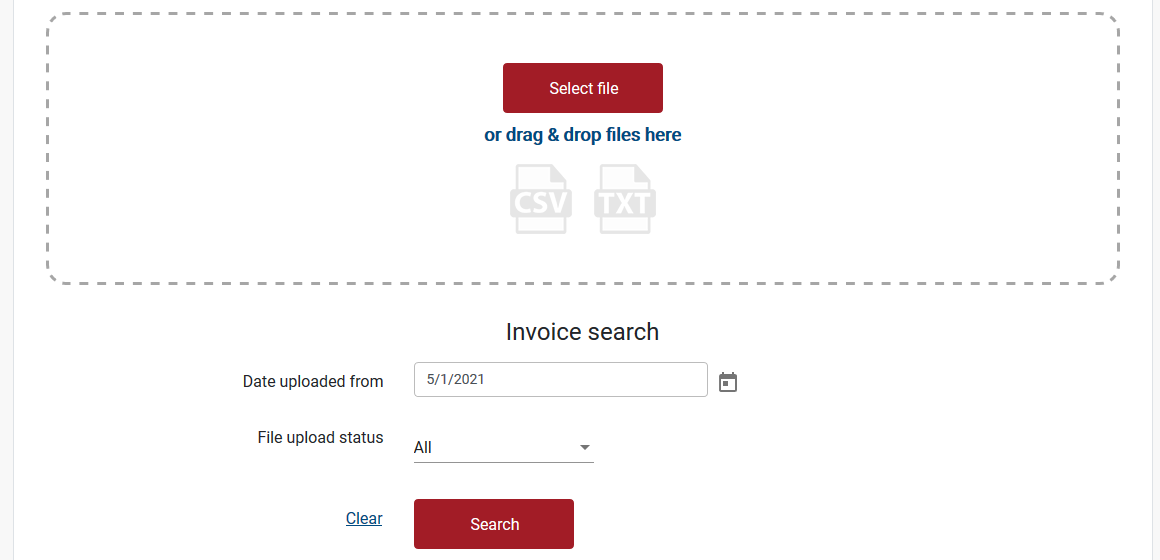
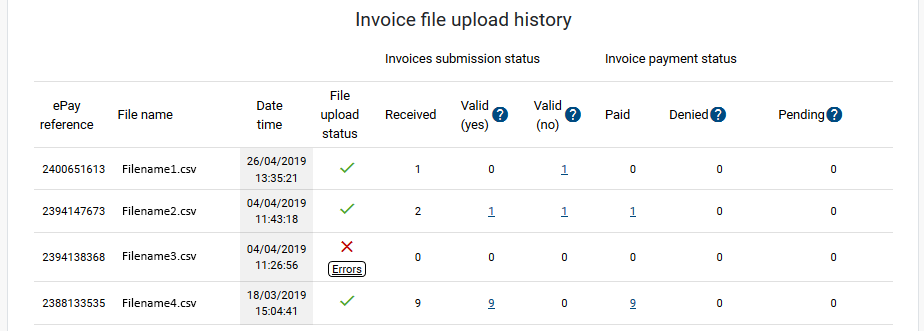
- When your files have uploaded, click ‘Search’ and they will appear under ‘Invoice file upload history’, where you can check the status of your invoice files.
- Errors in files will be indicated in the ‘File upload status’ column.
- Click on the ’Errors' button under the red cross to display and print details about the error.
- A possible cause of errors may be the contents of your file. Please check your file meets the File format requirements.
- If your file has errors, they will need to be fixed and the file uploaded again.
Watch this video to learn how to manually create an invoice file using Microsoft Excel (CSV format).
This video explains some of the common errors encountered when uploading invoice files and how to fix them.
Still need help?
If you require assistance or have any feedback please contact us.
Call us on 13 18 55 between 8:30am - 5:00pm Monday to Friday or email info@rtwsa.com.